
HDMI KVM Switch for 2 Computers
4.2Editor score
Affordable price point for basic needs
Supports 4K at 60Hz video output
Compact design with wired remote control
This guide compares the top ten KVM Switches for 2026 to help you choose the right model for your multi-computer setup and monitor needs.
Choosing the right KVM Switches can transform your workspace by allowing seamless control over multiple computers using a single set of peripherals. Whether you are a developer testing software across environments or a creative professional managing work and personal rigs, a reliable switch saves time and reduces cable clutter significantly.
We have carefully evaluated the leading models available in the market based on resolution support, port configurations, and switching mechanisms. Our analysis focuses on real-world usability, build quality, and compatibility with modern displays and operating systems to ensure you get a device that meets your specific workflow demands.
Each recommendation below highlights key strengths and potential limitations to help you make an informed decision for your setup. Please note that product availability and pricing can change frequently so always verify the latest details before purchasing to ensure the device matches your current hardware requirements and budget.
4.2Editor score

3.9Editor score

4.5Editor score
This side-by-side comparison reviews all ten selected models to highlight their unique specifications and capabilities. Use this section to quickly identify which device matches your port requirements and resolution needs without reading every detailed review.


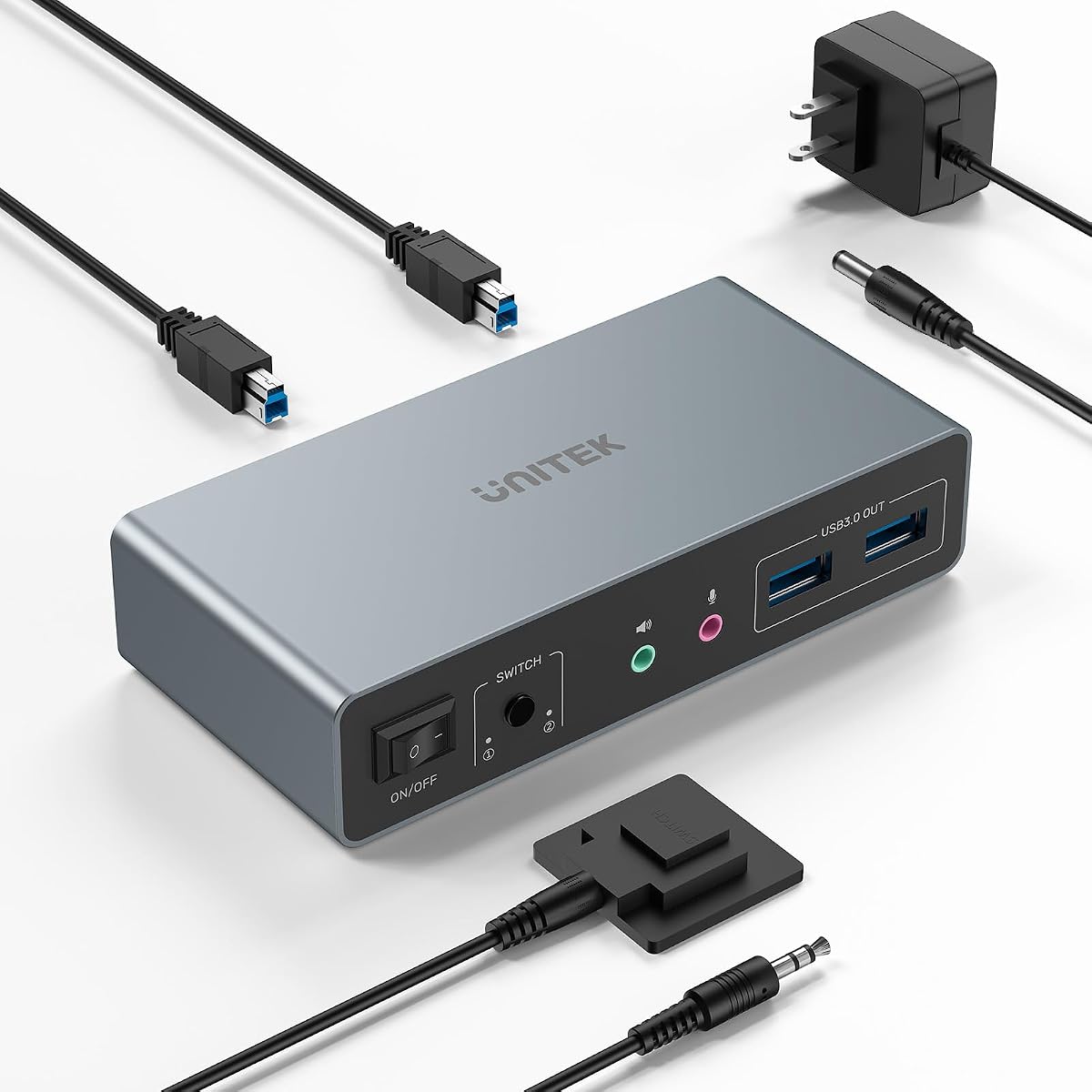

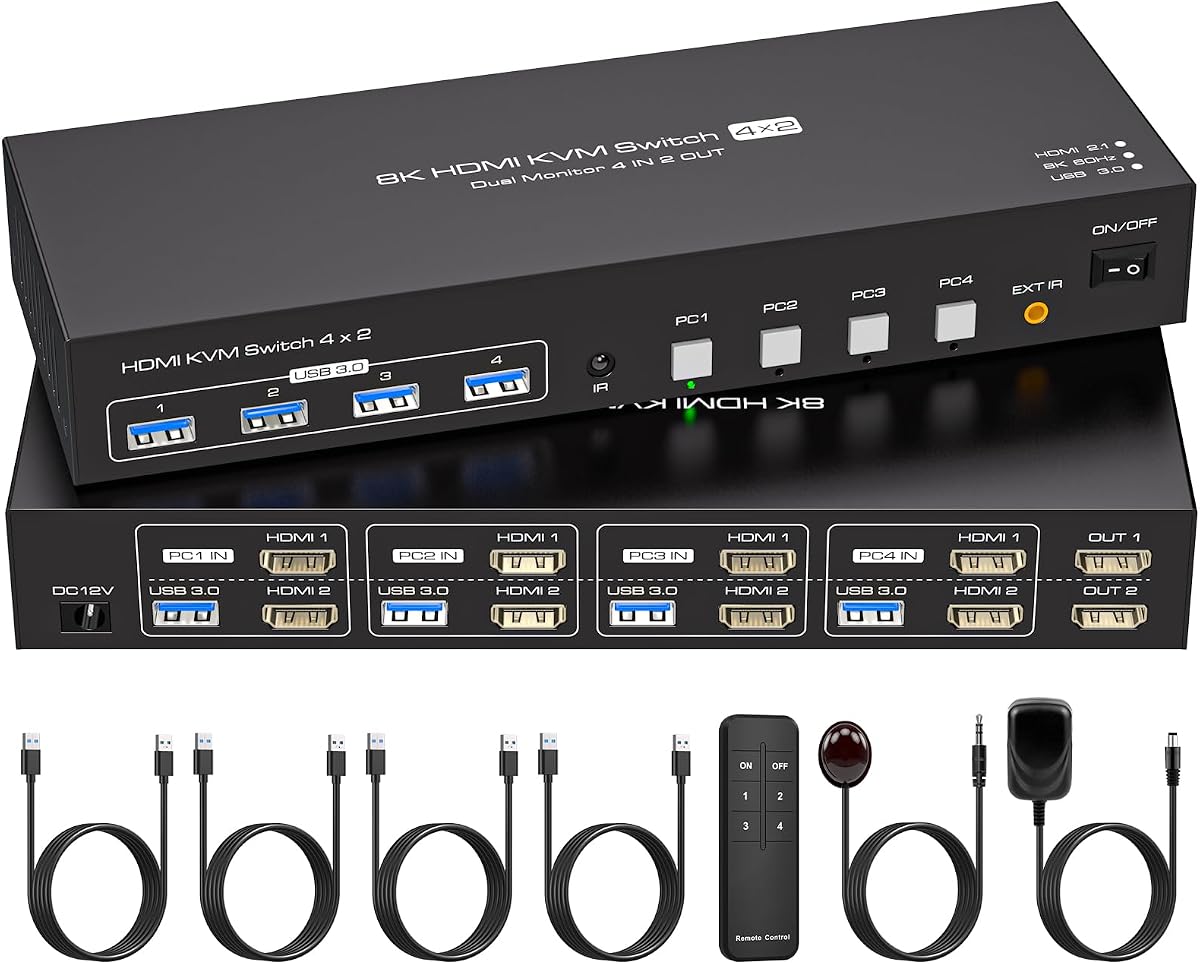

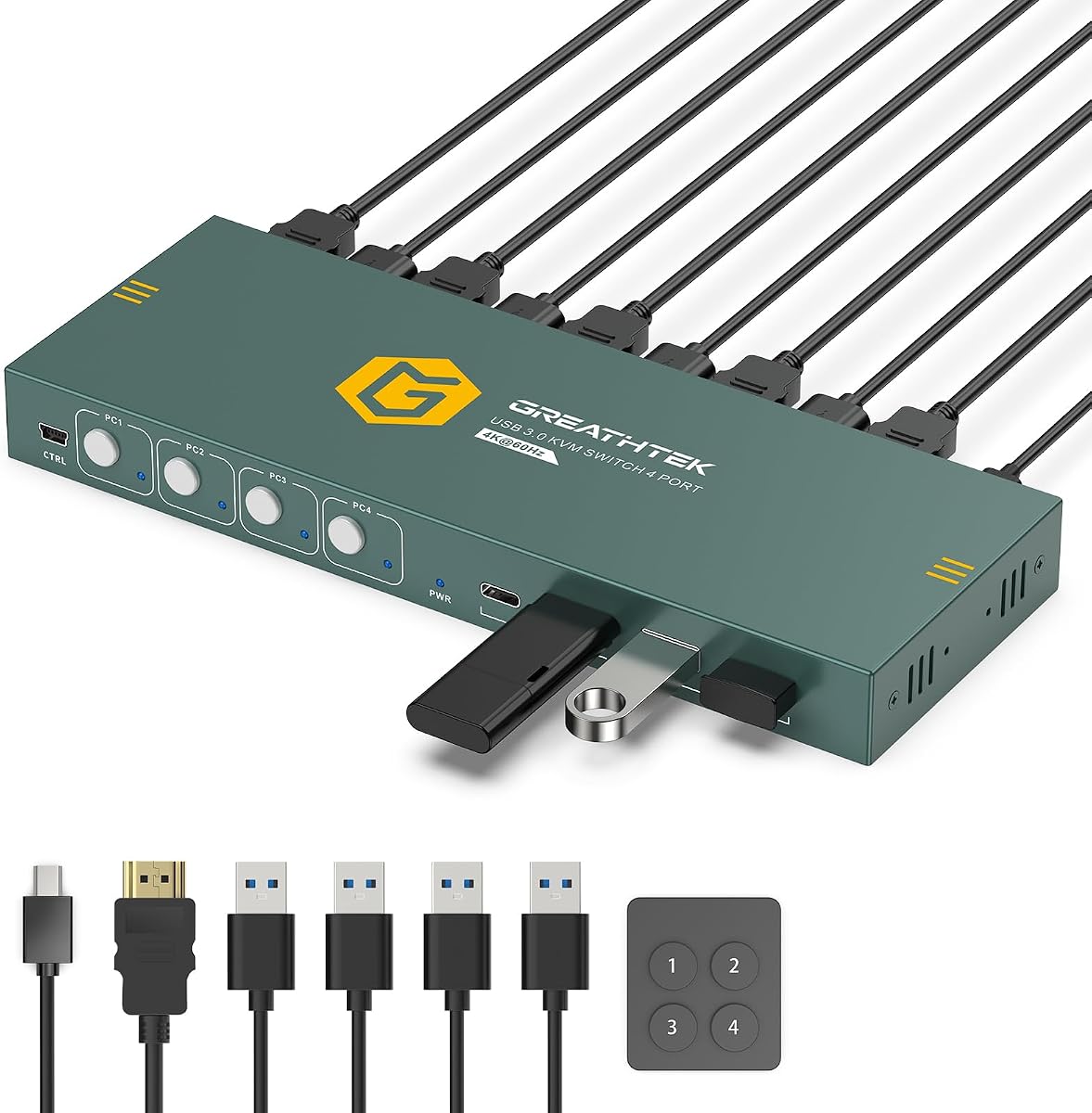
This KVM switch is designed for users who need to manage two computers across three monitors with high resolution capabilities. It stands out for its ability to handle 8K at 60Hz resolution making it suitable for high-end creative workflows or advanced visualization tasks.
We may earn a commission when you buy through this link, at no additional cost to you.
The device supports both mirror and extend modes allowing you to duplicate screens or spread your workspace across all displays. It includes a desktop controller which lets you place the switch away from your desk for a cleaner setup while maintaining easy access.
However users must ensure their computers support triple monitor output to utilize all three screens effectively. The lack of keyboard shortcut toggles means you will rely on physical buttons or the remote controller for switching which might be slower for some users.
This model is ideal for professionals who prioritize screen real estate and resolution quality over cost. If your workstation requires high fidelity displays and you need to switch between two systems seamlessly this switch provides the necessary infrastructure.
The switch supports 8K at 60Hz and 4K at 240Hz ensuring smooth visuals for high frame rate applications or detailed design work.
Users can choose between mirror mode for identical output or extend mode for different content on each monitor providing versatile workspace options.
We may earn a commission when you buy through this link, at no additional cost to you.
This switch is perfect for users who need to control two computers with a single monitor and keyboard mouse setup. It simplifies your desk by eliminating the need to constantly swap cables between machines while maintaining a clean visual aesthetic.
We may earn a commission when you buy through this link, at no additional cost to you.
One of its strongest features is the Adaptive EDID which ensures stable image transmission without requiring you to adjust settings manually. The package includes a wired remote switch allowing you to place the unit out of sight while keeping control within reach.
The device does not require an external power supply which reduces cable clutter significantly. However it is limited to one monitor so it is not suitable for users who need dual or triple screen configurations for their workflow.
Choose this model if you value ease of use and a clutter free desk. It works well for standard office tasks or home use where high resolution multi-monitor capabilities are not a primary requirement.
Installation is straightforward as the device requires no drivers or additional software to function correctly with supported operating systems.
It features four USB 3.0 ports allowing you to share peripherals like printers and webcams between your two computers seamlessly.
We may earn a commission when you buy through this link, at no additional cost to you.
This Displayport switch offers an impressive refresh rate of 144Hz which is excellent for gamers who need smooth motion across multiple screens. It allows two computers to share two displays providing a versatile setup for work and play without needing duplicate hardware.
We may earn a commission when you buy through this link, at no additional cost to you.
The device includes an external power adapter ensuring stable operation for connected USB devices even under heavy load. A desktop controller is also included so you can manage the switch without reaching behind your computer tower or monitor stack.
While it offers high performance value users should note that displayport cables are not included in the package. You will need to purchase these separately to ensure compatibility with your existing hardware and monitor inputs.
This unit is best for budget conscious users who need high refresh rates for gaming or video editing. It balances cost and performance effectively making it a strong contender for dual monitor setups.
Support for up to 144Hz ensures that fast-paced games run smoothly without tearing or stuttering across your dual display setup.
The external power adapter ensures that USB devices like hard drives receive sufficient power to operate reliably during switching.
We may earn a commission when you buy through this link, at no additional cost to you.
This model is specifically designed for desktop hosts providing a robust solution for users who need to switch between two towers. It supports both HDMI and Displayport inputs giving you flexibility depending on your computer and monitor connectivity options.
We may earn a commission when you buy through this link, at no additional cost to you.
It includes a desktop controller for easy switching and comes with a power adapter to ensure stable performance. The build quality feels durable and the included cables make it easy to set up immediately upon arrival.
One limitation is that it is not compatible with laptops which restricts its use to desktop-only environments. If you need to switch between a laptop and a desktop you may need to look for a different model with broader compatibility.
Choose this switch if you have a dedicated desktop setup and need reliable performance with a variety of video inputs. It is a sturdy choice for home offices or gaming rigs that require dual monitor support.
The ability to connect both HDMI and Displayport sources allows for diverse computer configurations without needing additional converters.
The design is optimized for desktop towers ensuring stable power and signal transmission for consistent performance.
We may earn a commission when you buy through this link, at no additional cost to you.
This switch is one of the few affordable options that supports three HDMI monitors for two computers. It is a great choice for users who want a wide viewing area without investing in expensive Displayport hardware for their entire setup.
We may earn a commission when you buy through this link, at no additional cost to you.
The device includes a 12V power adapter which is necessary to drive three video signals and multiple USB devices reliably. You can switch between extended and copy modes to match your workflow whether you are presenting or multitasking.
Note that your computers must support triple monitor output to take full advantage of this switch. If your PC only supports dual displays you will not be able to utilize the third monitor simultaneously on both systems.
This model is ideal for traders or designers who need three screens and want to keep their setup cost effective. It provides solid performance for HDMI based triple monitor configurations without requiring a high budget.
The ability to drive three monitors simultaneously via HDMI makes this a rare find in the mid-range market segment.
An external power adapter ensures that the switch can handle the load of three active video signals without signal loss.
We may earn a commission when you buy through this link, at no additional cost to you.
This switch stands out because it can handle four separate computers connected to two monitors. It is perfect for IT professionals or developers who need to manage multiple systems without buying separate monitors and keyboards for each one.
We may earn a commission when you buy through this link, at no additional cost to you.
The built-in EDID emulation ensures that your displays are recognized correctly when you switch between computers. This prevents windows from rearranging every time you change inputs which helps maintain your workflow continuity.
Users should note that connecting four computers requires significant cabling which can become complex. Ensure your computers have enough HDMI ports to connect to the switch as each input requires dedicated video connections.
Choose this model if you need to manage more than two systems on a limited desk space. It offers the highest input flexibility in this comparison making it a unique solution for specialized workstations.
With support for four computers you can keep your entire fleet accessible from one workstation without needing extra hardware.
EDID emulation keeps your window arrangements stable across switches saving you time from reorganizing your desktop each time.
We may earn a commission when you buy through this link, at no additional cost to you.
This device is not a traditional KVM switch but rather a remote access device that allows you to control systems over a network. It is perfect for managing servers or workstations that are located in different rooms or buildings.
We may earn a commission when you buy through this link, at no additional cost to you.
The unit includes a touchscreen interface and supports 4K video passthrough so you can see high quality visuals remotely. It also supports two-way audio which makes it useful for remote support or collaborative troubleshooting sessions.
While it offers incredible flexibility the price is higher than standard physical switches. You will need to configure your network to ensure it connects properly but once set up it works smoothly across various operating systems.
Choose this if you need to manage devices remotely or across locations. It is a premium solution for IT professionals or advanced users who need control without being physically present at the desk.
You can access BIOS and operating systems remotely allowing for troubleshooting without physical presence at the machine.
4K passthrough and two-way audio ensure that remote collaboration feels natural and detailed for effective teamwork.
We may earn a commission when you buy through this link, at no additional cost to you.
This switch is a straightforward solution for users who need to manage two computers on two monitors using HDMI connections. It simplifies the setup process by allowing you to use one set of peripherals for both systems.
We may earn a commission when you buy through this link, at no additional cost to you.
It includes a desktop controller which makes it easy to place the switch in a hidden location for a cleaner workspace. The included cable kit ensures you have everything you need to get started immediately.
One limitation is the lack of EDID emulation which might cause display settings to reset when switching. If you rely on specific monitor configurations this could be a minor inconvenience that you need to adjust for.
This model is best for standard home or office setups where simplicity is key. It provides reliable performance for dual monitor needs without requiring complex technical knowledge to operate.
The inclusion of a desktop controller and full cable kit helps keep your workspace organized from the start.
Four USB ports allow you to share a variety of devices like webcams and printers between your connected systems.
We may earn a commission when you buy through this link, at no additional cost to you.
This switch is ideal for IT technicians who need to test or manage four different systems using a single monitor. It allows you to cycle through machines quickly without needing to move hardware around your workspace.
We may earn a commission when you buy through this link, at no additional cost to you.
The package includes mounting brackets and a wired remote which makes it easy to integrate into a rack or fixed workstation. EDID Adaptive technology helps ensure your monitor settings remain consistent across switches.
It is limited to a single monitor so it is not suitable for users who need multiple screens. However for testing environments or compact workspaces this efficiency is a significant benefit.
Choose this if you need to manage multiple systems efficiently in a limited space. It is a practical tool for professionals who need to access different PCs frequently.
The ability to connect four computers makes this perfect for QA testing or IT troubleshooting without extra hardware.
Included mounting brackets allow you to secure the unit under your desk keeping it out of sight and stable.
We may earn a commission when you buy through this link, at no additional cost to you.
This small switch is designed for users who need a basic solution to toggle between two computers. It is extremely compact and does not require an external power adapter making it easy to move or store.
We may earn a commission when you buy through this link, at no additional cost to you.
The included wired controller allows you to control the switch from your desk without reaching behind your monitor. It supports 4K resolution which is impressive for a device of its size and price point.
Note that it uses USB 2.0 ports which are sufficient for keyboards and mice but not for high speed data transfers. Also it may have compatibility issues with Mac devices so check your system before buying.
Choose this if you need a portable or budget friendly solution for two PCs. It is a great option for dorm rooms or small offices where space is at a premium.
The lack of external power requirements means you can easily move this switch between workspaces or take it with you.
USB 2.0 ports are perfect for standard peripherals ensuring reliable input switching without needing extra bandwidth.
We may earn a commission when you buy through this link, at no additional cost to you.
Selecting the right KVM switch requires understanding your specific hardware needs and workflow requirements. We have outlined the key factors you should consider to ensure compatibility and performance.
Determine how many screens you need to support for each computer. Some switches only handle one monitor while others support dual or triple setups. Ensure the switch matches your visual workspace needs.
Choose a switch that supports the number of displays you plan to use to avoid purchasing additional hardware later.
Check how many PCs you need to switch between. Options range from two to four inputs. Make sure the input count matches your current setup plus any future expansions.
Select a model that accommodates all your active computers to ensure seamless switching without extra adapters.
Look for support for resolutions like 4K or 8K at high refresh rates. High resolution capabilities ensure crisp visuals for design or gaming. Verify your monitors and GPUs match these specs.
Prioritize models that match your display capabilities to avoid bottlenecks in video quality or performance.
Consider how you want to switch between computers. Options include buttons on the unit, wired remotes, or infrared remotes. Choose one that fits your desk layout and accessibility needs.
Select a switching method that allows you to change inputs quickly and comfortably during your workflow.
USB 3.0 ports allow for faster data transfer for connected peripherals. Check if you need USB 2.0 or 3.0 speeds for your devices. Faster speeds are better for external drives and webcams.
Ensure the switch offers USB 3.0 connectivity if you plan to use high-speed storage or peripherals.
Some switches require an external power adapter while others are bus powered. An external adapter ensures stability for multiple connected devices. Check your desk space for power outlet availability.
Prefer models with external power supplies if you connect many USB devices to prevent instability.
Verify that the switch is compatible with your operating systems such as Windows, macOS, or Linux. Some models may have limitations with laptops or specific brands. Check reviews for system-specific feedback.
Choose a device that supports your operating system to avoid driver issues or connection failures.
Check whether the switch uses HDMI or Displayport for your monitors. Some models offer hybrid support while others are specific. Match the ports to your computer and monitor outputs.
Select the correct video interface to ensure your existing cables work without needing new adapters.
Connect your computers to the KVM switch using the appropriate video cables and USB cables. Ensure each PC has all necessary connections to the switch inputs for the to work correctly.
Plug in your monitor and peripherals to the output ports of the switch. Use the provided controller or buttons to toggle between connected computers smoothly.
Keep the switch in a cool dry place to avoid overheating. Avoid pulling on cables to prevent damage to the ports and ensure long-term reliability of the unit.
Most KVM switches support Mac computers as long as the video and USB ports match. However some models may have specific compatibility issues so check the product details. Ensure you have the correct cables for your Mac ports.
EDID emulation allows the switch to tell the computer the display capabilities so settings remain stable. It prevents your monitor from resetting every time you switch. This feature ensures a smoother experience when managing multiple systems.
Yes if the switch supports high refresh rates like 144Hz and low latency. Check the specs to ensure it handles fast motion without tearing. Look for models with G-Sync or FreeSync support for best results.
Check the product details for power requirements. If you connect multiple USB devices or high resolution monitors you may need an adapter. Ensure the switch has enough power to drive all connected peripherals.
Most switches are plug and play and do not require any software installation. You can simply connect cables and start using the device. Some advanced models might include apps for remote control.
Some packages include cables while others do not. Check the package list before buying to avoid extra costs. Ensure you have the right length and type for your setup.
We have reviewed ten top models ranging from budget options to high performance units. Each switch offers unique features to match different workspace needs and budgets.
Prioritize compatibility and resolution support to ensure you get a device that works with your current hardware. Consider your workflow to decide on switching methods and monitor counts.
Always check the latest availability and pricing before purchasing as details can change. Verify that the switch meets your technical requirements to ensure satisfaction.