
StarTech USB-A DisplayLink Adapter
4.4Editor score
Dual DP 4K output
Gigabit Ethernet port
Compact bus-powered design
This guide compares the top Displaylink Adapter models for dual 4K outputs, Mac compatibility, and productivity across ten leading certified options available
Finding the right Displaylink Adapter can transform your single-screen laptop into a powerful dual-monitor workstation. These adapters use specialized technology to bypass native video limits on many modern Mac and Windows machines. They enable seamless multitasking for professionals who need extra screen real estate for coding, data analysis, or creative work.
We evaluated ten top-rated models based on video quality, compatibility with M1 through M5 chips, driver reliability, and build durability. Our analysis focuses on real-world performance for office tasks, extended warranty support, and ease of setup across different operating systems like Windows and macOS. This list helps you avoid common pitfalls like HDCP incompatibility or driver issues.
Each pick below highlights key strengths, potential trade-offs, and ideal use cases to help you match a device to your specific workflow needs. Prices and availability fluctuate frequently, so always verify the latest offers before purchasing. We prioritize adapters that deliver stable 4K performance and reliable long-term support for remote or hybrid work environments.
4.4Editor score

4.8Editor score

4.5Editor score
The following comparison table provides a side-by-side look at the key specifications and features of each selected Displaylink Adapter. This overview helps you quickly identify which model supports your specific laptop ports, required resolutions, and operating system needs before making a final decision.



The ACASIS USB C to Dual HDMI DisplayLink Adapter stands out as a versatile choice for users needing dual extended displays from a single port. With a solid 4.3 rating, this adapter reliably delivers crystal-clear 4K visuals at 60Hz for productivity tasks. Its sleek aluminum housing and integrated charging port make it an excellent companion for modern laptops.
We may earn a commission when you buy through this link, at no additional cost to you.
This adapter excels in its ability to transform your laptop into a productivity powerhouse by adding two extra monitors via one USB-C or USB-A connection. The 100W PD fast charging feature ensures your device stays powered during long sessions without needing an extra outlet. Additionally, three USB-A ports allow you to connect peripherals like mice and keyboards directly through the hub.
However, buyers should note that this device requires a specific driver download and is not suitable for gaming or protected content like Netflix due to HDCP limitations. These trade-offs are acceptable for office work but may disappoint media consumers. The adapter performs best in environments where stable extended desktops are prioritized over video streaming or high-frame-rate gaming.
Ideal for remote workers, developers, and analysts who need expanded workspace on Mac M1 through M4 or Windows systems, this adapter balances performance and portability well. Its lightweight design slips easily into a bag for travel while maintaining cool operation. For those seeking a reliable multi-monitor setup without breaking the bank, this ACASIS model offers significant value and functionality.
The adapter supports dual 4K@60Hz extended displays, allowing seamless multitasking across two external monitors plus your laptop screen.
A dedicated 100W USB-C PD port keeps your laptop charged while driving external monitors, reducing cable clutter in your workspace.
We may earn a commission when you buy through this link, at no additional cost to you.
The WAVLINK USB 3.0 or USB C adapter offers a flexible solution for connecting dual monitors to a wide range of laptops. Its hybrid 2-in-1 cable simplifies setup by supporting both USB-C and USB-A ports without extra adapters. With a strong 4.4 rating, this adapter delivers high-resolution visuals suitable for professional productivity workloads across Windows and macOS systems.
We may earn a commission when you buy through this link, at no additional cost to you.
Designed for seamless compatibility, this DisplayLink adapter adds two extended screens to all M1 through M5 Macs and Windows PCs efficiently. The hybrid cable ensures you can connect to various devices like Thunderbolt or USB 4 ports easily. Once installed, you can mirror or expand your screen content for greater productivity in office or home environments.
Keep in mind that iOS, Linux, and Unix systems are not supported, and driver installation is necessary for initial setup. Additionally, playback of HDCP-protected content on streaming sites like Netflix or Hulu is not supported on this adapter. These limitations are typical for DisplayLink technology but may restrict usage for entertainment-focused users who need video playback.
If you need a reliable dual-monitor setup for web browsing, productivity software, or coding, this WAVLINK adapter provides excellent value. Its compatibility with newer Mac models and robust warranty support make it a safe choice for expanding your workstation. For users who prioritize flexibility in connectivity and broad system support, this model is a strong contender.
The included hybrid 2-in-1 cable allows easy connectivity to USB-C, USB-A, Thunderbolt 3/4, and USB 4 ports.
Supports Windows 11/10, macOS 11 or later, and ChromeOS 100+ systems with Thunderbolt, USB 4, USB-C, or USB 3.0.
We may earn a commission when you buy through this link, at no additional cost to you.
This WAVLINK USB 3.0 to HDMI adapter provides exceptional flexibility for users needing multiple displays beyond just a dual setup. With support for up to six monitors when using one adapter per screen on PCs, it offers scalable workspace expansion. The adapter includes a built-in microphone and earphone output for added convenience during calls or media consumption.
We may earn a commission when you buy through this link, at no additional cost to you.
Resolutions up to 2048×1152 at 60Hz or 2560×1440 at 50Hz are supported, making it suitable for various productivity tasks. Its USB 3.0 GPU certification by DisplayLink ensures stable performance across Windows, macOS, ChromeOS, and even Android with USB OTG mode. The compact design with LED status indicators simplifies setup and monitoring for busy professionals.
Potential buyers should note that driver installation is required for all supported operating systems including macOS and ChromeOS. Additionally, resolution options may not reach full 4K@60Hz on all configurations compared to premium dual-output adapters. These trade-offs are reasonable given the focus on multi-monitor scalability and budget-friendly pricing for general office use cases.
Ideal for users managing complex workflows requiring several screens, this adapter delivers reliable performance with broad system compatibility. The inclusion of audio ports and straightforward plug-and-play setup after driver install make it user-friendly. If you need to connect multiple additional monitors to your computer without native GPU support, this WAVLINK model is a practical and cost-effective solution.
You can connect multiple additional monitors to your computer using one adapter required per monitor, up to 6 total on PCs.
External 2.1CH Microphone in and Earphone output allow convenient audio connections without needing separate audio hardware.
We may earn a commission when you buy through this link, at no additional cost to you.
The Plugable USB C to HDMI Adapter is recognized as a top choice for expanding displays on MacBook models from M1 through M5. It adds two 4K 60Hz external displays from a single USB-C port, overcoming native limitations on base Air models. With a 4.3 rating, this adapter is designed specifically for traditional and hybrid office setups requiring reliable extended desktops.
We may earn a commission when you buy through this link, at no additional cost to you.
This adapter delivers dual 4K 60Hz displays from a single Thunderbolt, USB4, or USB-C port seamlessly. Windows and ChromeOS systems are plug-and-play, while Mac users need to install the DisplayLink Manager and allow permissions. This ensures three total screens can run simultaneously, enhancing multitasking capabilities for coding and office applications without video stutter.
Users should be aware that HDCP-protected streaming apps like Netflix or Disney+ are not compatible with DisplayLink outputs. Productivity, coding, and office apps work fully however, making it ideal for work tasks rather than entertainment. The adapter includes lifetime support from a North American team of connectivity experts, ensuring help is available whenever needed for deployment or setup.
For Mac users limited to one external display natively, this Plugable adapter offers a reliable path to a triple-screen setup. Its focus on reliability and lifetime support makes it a safe choice for IT departments or home offices. If you need to extend your workspace beyond Mac limitations while maintaining high-quality 4K visuals, this adapter is highly recommended.
Adds two 4K 60Hz HDMI external displays to MacBook M1 through M5/Neo from a single USB-C port.
Includes lifetime support from North American connectivity experts to assist with deployment and setup needs.
We may earn a commission when you buy through this link, at no additional cost to you.
This Plugable adapter offers flexible connectivity options with both USB-C and USB-A support for driving two external HDMI displays. Powered by the DisplayLink DL-6950 chipset, it delivers dual 4K 60Hz performance without needing external GPUs or additional Thunderbolt ports. The attached USB-A adapter ensures compatibility with older Windows laptops or when USB-C ports are occupied.
We may earn a commission when you buy through this link, at no additional cost to you.
Dual 4K 60Hz display performance makes it ideal for office applications, coding, spreadsheets, and web browsing in extended modes. Windows and ChromeOS systems automatically support DisplayLink, making it plug-and-play for many users. The integrated adapter stays with the device, simplifying transitions between different computers without losing track of accessories.
Mac users are not recommended for this model due to better compatibility with other Plugable variants. Additionally, HDCP-protected streaming services like Netflix or Hulu are not supported on DisplayLink-connected displays. These limitations are standard for the technology, but they confirm this adapter is optimized for productivity rather than media playback scenarios.
If you need reliable home office or business use with dual-display support for spreadsheets and multitasking, this adapter is well-suited. The built-in USB-A adapter and lifetime North American support enhance its practicality for varied IT environments. For users who value flexibility in connectivity and robust support, this Plugable model is a strong choice.
Connect two external HDMI displays using USB-C on newer systems or the attached USB-A adapter for older laptops.
The integrated USB-A adapter stays with the device, making it easy to move between USB-C and USB-A computers.
We may earn a commission when you buy through this link, at no additional cost to you.
The StarTech USB-A DisplayLink dual 4K 60Hz DP mini dock provides an affordable solution for adding dual displays to older laptops. It features dual monitor DisplayPort outputs and a GbE port for reliable wired network connectivity. With a 4.4 rating, this bus-powered docking station is ideal for small in-office or work-from-home workspaces needing extra screen space.
We may earn a commission when you buy through this link, at no additional cost to you.
Designed for portability, this mini dock has a compact form factor and a 1ft attached cable to reduce port strain on devices like Surface Pros. The DisplayLink certified DL 6950 chipset ensures widespread display compatibility and stable dual DP video output. It works seamlessly across Windows and Chrome OS platforms with automatic driver setup for easy deployment.
Keep in mind this dock uses DisplayPort outputs, so HDMI monitors may need converters unless you use native DP inputs. The short cable limits reach and may not suit all desk layouts. However, for those needing reliable dual displays with added Ethernet without a bulky station, this StarTech model offers excellent value and straightforward setup.
Ideal for users with USB-A laptops or ultrabooks who need to extend their screen setup affordably, this mini dock is a practical choice. The included GbE port adds network reliability that wireless connections often lack. If you prioritize cost-effective multi-monitor support with enterprise-grade compatibility, this adapter delivers strong performance for the price.
USB 3.0 mini dock with dual monitor DisplayPort and GbE port for reliable wired network connectivity.
Portable USB Type-A docking station with a 1ft attached cable to provide setup flexibility and extended port reach.
We may earn a commission when you buy through this link, at no additional cost to you.
The ACASIS Dual DP DisplayLink Adapter stands out as a premium choice for Mac users seeking reliable dual-monitor expansion. With a high 4.8 rating, this adapter bypasses macOS multi-screen restrictions and delivers ultra-stable video signals without flicker. Its powerful DisplayLink technology supports true extended desktop modes ideal for designers and power users.
We may earn a commission when you buy through this link, at no additional cost to you.
Featuring 2 DP ports with 4K@60Hz resolution, this hub acts as a high-performance docking station for MacBook Air and Pro models. A 100W PD port keeps notebooks fully powered while driving external displays, eliminating battery drain during long sessions. The hub also includes three USB-A ports for connecting legacy peripherals like mice and flash drives effortlessly.
Users must install the DisplayLink driver before first use and should note the output is DP, not HDMI, requiring cables for HDMI monitors. The aluminum alloy build ensures optimal heat dissipation and scratch resistance, making it durable for travel. While these setup steps add minor friction, the stable performance and premium build justify the effort for serious professionals.
If you value reliable dual display ports with robust charging and peripheral support in a compact aluminum body, this ACASIS model excels. It bridges legacy peripherals and modern workflows without signal loss, enhancing home office productivity. For premium quality and stability in dual monitor setups, this adapter is a top recommendation for Mac and Windows users.
Equipped with advanced technology bypassing macOS multi-screen restrictions for ultra-stable video signals without flicker.
Combining heavy-duty 100W power delivery with video capabilities in a scratch-resistant aluminum alloy design.
We may earn a commission when you buy through this link, at no additional cost to you.
This WAVLINK USB 3.0 & USB C adapter delivers ultra-high definition dual 4K@60Hz visuals through versatile USB-C or USB-A ports. With a strong 4.6 rating, it supports Mac M1 through M5 and Windows 10/11 systems reliably. The adapter includes encrypted DL-chip technology ensuring enterprise-level data protection for secure corporate environments.
We may earn a commission when you buy through this link, at no additional cost to you.
Versatile dual monitor connectivity allows connection to Thunderbolt 3/4, USB4, and legacy USB 2.0 ports easily. Transform any laptop into a powerful dual-display workstation with this adapter for maximum efficiency. The DL-Chip encryption safeguards sensitive information during daily operations, making it trusted for secure business use cases.
Note that driver installation is required via displaylink.com and Linux, Unix, iPad, or iOS are not supported. HDCP-protected content like Netflix is also unsupported on this adapter. These limitations are standard but the security features distinguish this model for users prioritizing data protection alongside high-definition dual displays.
If you need secure corporate environments with expanded workspace, this WAVLINK adapter offers advanced features worth considering. Its robust compatibility and encryption technology make it a strong choice for professionals handling sensitive data. For versatile setups requiring both performance and security across various devices, this model stands out effectively.
Equipped with encrypted DL-chip technology ensuring enterprise-level data protection during daily operations.
Supports Thunderbolt 3/4, USB4, and legacy USB 2.0 ports for transforming laptops into dual-display workstations.
We may earn a commission when you buy through this link, at no additional cost to you.
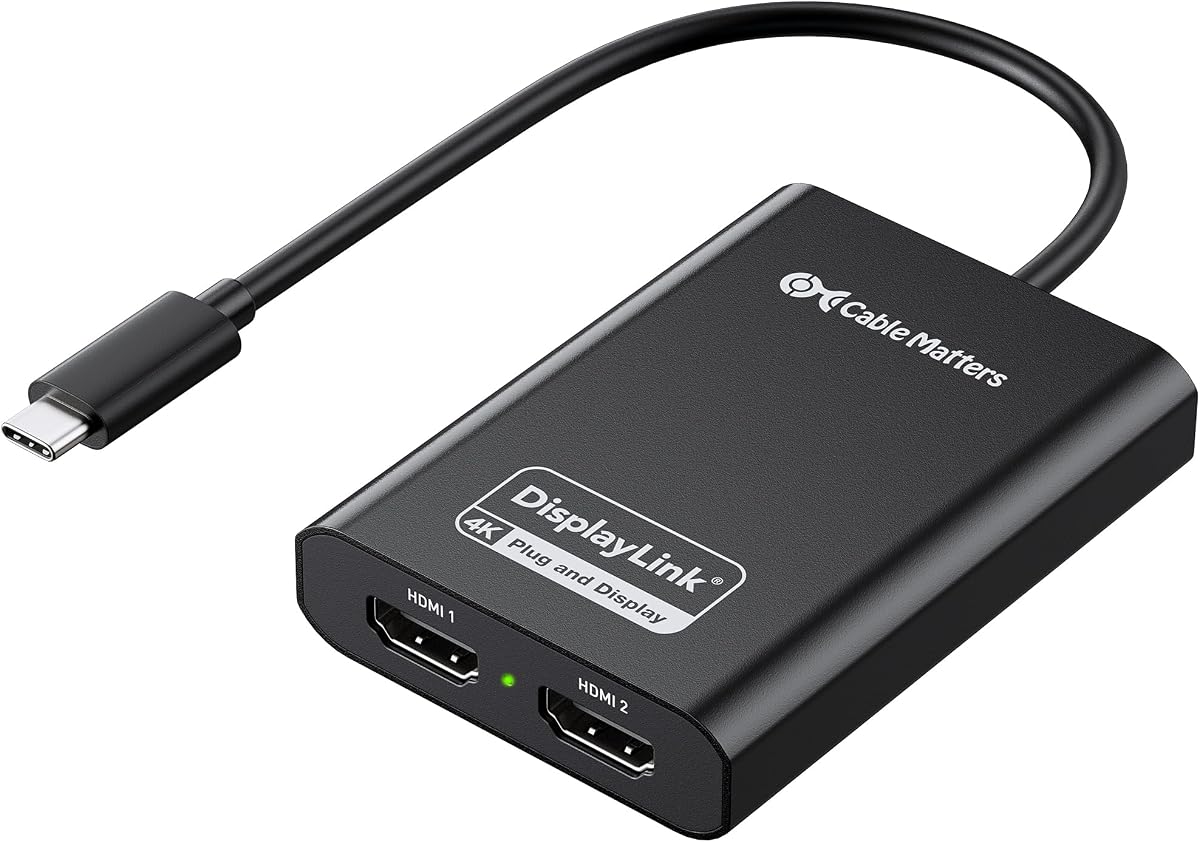
The Cable Matters USB C to Dual HDMI adapter is DisplayLink Certified for reliable dual extended displays on macOS and Windows. With a 4.0 rating, this adapter breaks the single-display limit on many Mac laptops including M1, M2, and M3 models. It turns one USB-C port into two HDMI outputs creating a real dual-monitor workspace for productivity.
We may earn a commission when you buy through this link, at no additional cost to you.
Dual 4K@60Hz performance powers two crisp displays via HDMI 2.0 leveraging USB 3.2 Gen 1 bandwidth for smooth visuals. Eliminate 30Hz flicker and single-display limits for seamless multitasking or content creation. The durable aluminum housing efficiently dissipates heat to maintain stable performance for everyday use and travel.
Performance may vary based on CPU, memory, and running applications. Mac users must install the DisplayLink Manager app and allow Screen Recording permission for proper functionality. Additionally, HDCP is not supported meaning streaming services may not play. These technical requirements are standard but should be noted before purchase.
Ideal for developers and creatives needing a real dual-monitor workspace without native GPU support, this adapter offers certified reliability. The durable construction and wide compatibility make it suitable for various setups from home offices to corporate environments. If you need true extended display freedom with solid hardware design, this is a strong option to consider.
Breaks the single-display limit on many Mac laptops allowing two extended 4K 60Hz HDMI monitors on macOS.
DisplayLink Certified to ensure reliable dual display functionality with hardware built for everyday professional use.
We may earn a commission when you buy through this link, at no additional cost to you.
The Sonnet DisplayLink Dual 4K HDMI Adapter enables connection of two 4K 60Hz displays to Macs and Windows computers reliably. With a solid 4.4 rating, it expands your onscreen work and play area by opening multiple applications on different displays. The adapter includes a USB-A female to USB-C male adapter for broader Thunderbolt or USB port compatibility.
We may earn a commission when you buy through this link, at no additional cost to you.
It supports higher refresh rates including 1080P at 60Hz and also supports Audio output for media consumption. This versatility allows viewing work on larger screens and watching videos simultaneously without audio compromises. Compatible with M1 MacBook Air and Pro models, it serves as a robust expansion solution for single-screen notebooks.
Note that as a DisplayLink adapter, it requires driver installation and may limit use for protected content playback. While perfect for M1 or M2 Mac notebooks and other systems, it focuses on extending workspace rather than native GPU support. These constraints are typical but acceptable for users needing stable dual display expansion on limited ports.
If you need to connect two 4K 60Hz displays to a single Thunderbolt or USB port efficiently, this Sonnet adapter performs well. The included USB-A adapter adds flexibility for varied laptop models. For users seeking reliable multi-display support with audio integration and broad Mac compatibility, this adapter is a strong practical choice.
Opens multiple applications on different displays and supports audio output for versatile use and play areas.
Perfect for M1 or M2 Mac Notebooks supporting M1 Pro, M1 Max, and M1 Ultra chip compatibility.
We may earn a commission when you buy through this link, at no additional cost to you.
Choosing the right Displaylink Adapter involves understanding your laptop's ports, operating system, and performance needs. This guide breaks down key factors to consider before purchasing a dual-monitor solution for work or personal use.
DisplayLink adapters use software-based compression to send video signals over USB requiring driver installation on most systems. This technology allows multiple displays on laptops with limited video output but depends on CPU performance for smoothness. Always verify system compatibility and driver availability before purchasing.
Ensure your device supports DisplayLink software and that you are willing to install required drivers for setup.
Most DisplayLink adapters support Windows 10/11 and macOS 11+ but often require specific settings on Mac including screen recording permissions. Linux and iOS support is limited or nonexistent depending on the vendor so check product documentation carefully before buying.
Select an adapter explicitly stating compatibility with your exact operating system version to avoid connection issues.
Adapters may offer HDMI or DisplayPort outputs and some use proprietary connectors requiring specific cables. Determine if your monitors match the adapter's ports or if you need additional converters to ensure seamless visual output setup.
Match the adapter's video output type to your monitor inputs or prepare appropriate HDMI to DP cables in advance.
Most adapters support dual 4K 60Hz but performance depends on USB bandwidth and GPU load. Check if your workflow requires high refresh rates or lower resolutions to balance performance with visual clarity effectively.
Choose an adapter rated for the resolution and refresh rate your workflow needs to maintain smooth performance.
Some adapters include 100W Power Delivery to charge your laptop while driving displays reducing cable clutter. This feature is essential if you want a single connection for video and power to maintain mobility and efficiency.
Opt for an adapter with USB-C Power Delivery if keeping your laptop charged during extended use is a priority.
Additional USB-A ports on adapters allow connecting mice keyboards and drives through the hub for better desk organization. This consolidation reduces dongle clutter and ensures all peripherals connect to one stable power source efficiently.
Check how many peripheral ports the adapter includes to ensure it meets your connectivity needs.
DisplayLink adapters generally do not support HDCP protected content meaning services like Netflix may not play on extended displays. This limitation is standard across DisplayLink technology so consider using native ports for streaming video if needed.
Accept that streaming services may require native HDMI outputs and reserve adapters for productivity tasks.
Reliable brands offer lifetime or multi-year warranties with dedicated support teams to assist with driver issues or hardware failures. This support is crucial for business users who need quick resolutions to minimize downtime in office setups.
Prioritize adapters from vendors offering strong warranty coverage and accessible technical support options.
Begin by downloading the latest DisplayLink driver from the official website before connecting the adapter to your computer. Install the software following prompts and restart your system to ensure all necessary components load correctly.
Plug the adapter into a USB-C or USB-A 3.0 port on your laptop then connect external monitors using appropriate HDMI or DisplayPort cables. Configure display settings via your operating system to arrange screens in your preferred extended or mirrored mode.
To maintain longevity avoid bending the adapter cable sharply and disconnect power when not in use for extended periods. Keep firmware updated through the DisplayLink app to ensure optimal performance and security features over time.
Yes, DisplayLink adapters work with M1, M2, M3, and M4 chips but require installing the DisplayLink Manager app and granting screen recording permissions. Most macOS 11+ systems support this technology effectively.
DisplayLink is not recommended for gaming due to compression latency and lack of hardware acceleration. It works best for productivity tasks like web browsing and coding but may lag during fast motion.
Drivers enable the software compression technology that sends video data over USB ports. Without them, the operating system cannot recognize or render the extended display signal correctly.
Most modern adapters support dual 4K 60Hz outputs depending on USB bandwidth and system performance. Check specifications to confirm if your model supports this resolution for each display.
Linux support is limited and often requires manual setup or community drivers. Some brands officially exclude Linux from compatibility lists to avoid support issues.
Some adapters allow up to six displays when using multiple units one per screen on PC systems. However, performance depends on CPU power and available USB bandwidth.
The ten adapters reviewed here offer diverse solutions for expanding your workspace from budget-friendly options to premium multi-port hubs. Each model balances resolution support, charging features, and compatibility to suit different laptop models and operating systems effectively.
Prioritize DisplayLink certification, driver availability, and port types that match your monitors before purchasing to avoid compatibility issues. Consider whether you need extra USB ports or charging features to streamline your desk setup further.
Always verify current prices and availability before purchasing since offers fluctuate regularly. With the right adapter you can transform limited-screen laptops into powerful multi-monitor workstations for productivity and creativity.