
Canon PIXMA TR7120
4.3Editor score
Compact stylish design
Dual-band Wi-Fi support
Mobile printing ready
Finding the right all in one printer for MacBook Air requires careful consideration of connectivity, size, and print quality. Mac users need devices that integrate seamlessly with macOS and iOS without complex driver installations or frustrating setup processes.
We evaluated ten leading models based on wireless reliability, scanning capabilities, and physical footprint. Each product was assessed for its ability to handle everyday printing tasks while maintaining a clean aesthetic suitable for modern home offices and small workspaces.
Every pick below highlights specific strengths for Apple users including AirPrint compatibility and mobile app support. Note that availability and stock levels change frequently so verify current options before making your final purchasing decision today.
4.3Editor score
3.9Editor score

4.3Editor score
As an Amazon Associate we earn from qualifying purchases.
The following table provides a side-by-side comparison of all ten models including key specifications and standout features to help you quickly identify the best fit for your specific printing needs and workspace constraints.




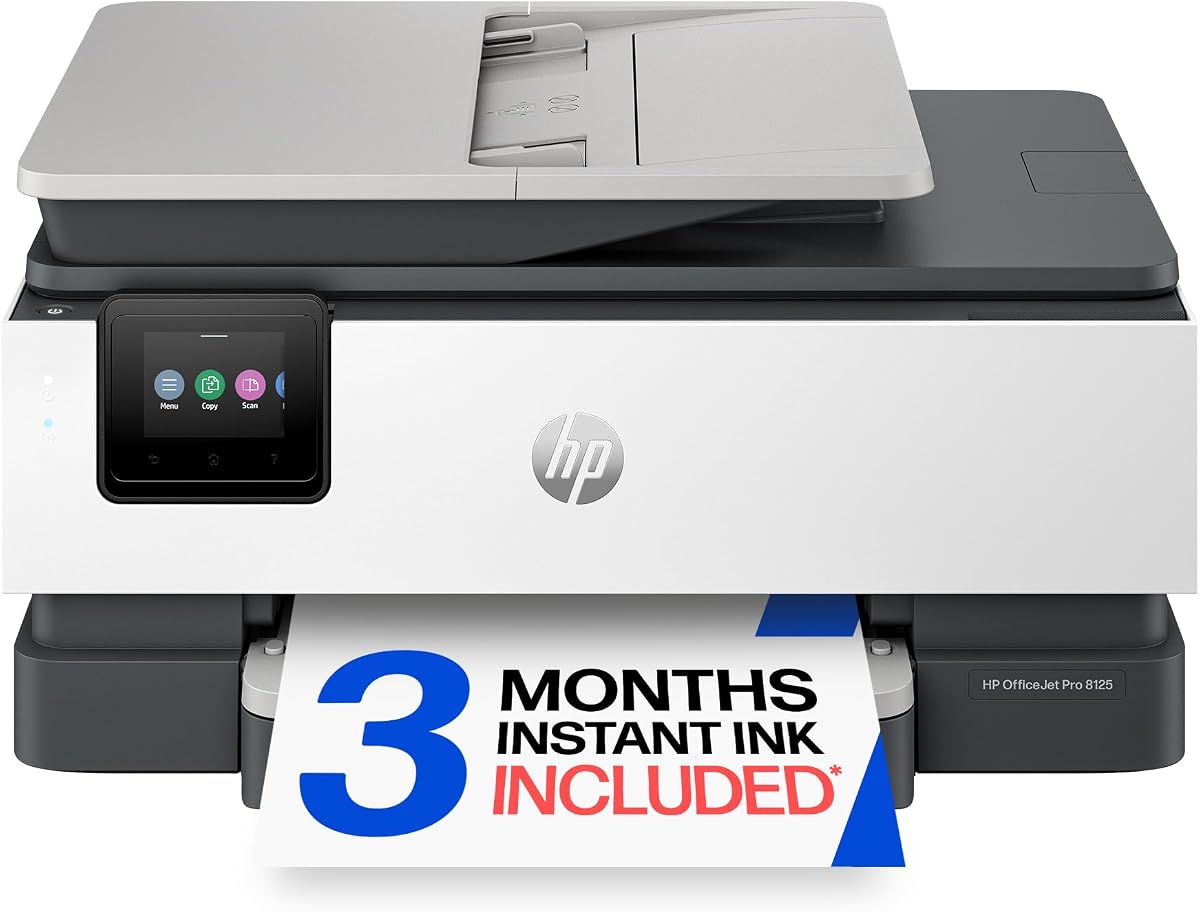
The HP OfficeJet Pro 8125 stands out as the top choice for MacBook Air users needing professional quality prints. With a 3.9 rating and robust features it delivers consistent results for both documents and presentations right from your Mac.
We may earn a commission when you buy through this link, at no additional cost to you.
Its standout qualities include fast printing speeds up to 20 ppm for black text and a large 2.7-inch touchscreen that simplifies navigation. The dual-band Wi-Fi ensures stable connections without dropping jobs during important work sessions.
Users may find the instant ink subscription costly after the initial trial period ends. However the convenience of automatic delivery and potential savings on ink outweigh this trade-off for many home office professionals.
This printer is ideal for users who prioritize speed and security in their workflow. Its AI capabilities and strong network protection make it a reliable companion for your MacBook Air in any modern workspace.
Works effortlessly with macOS and iOS devices ensuring wireless printing without driver headaches.
HP AI optimizes web pages and emails to prevent wasted paper and awkward layouts.
We may earn a commission when you buy through this link, at no additional cost to you.
The Epson EcoTank ET-2903 offers exceptional value for heavy Mac users thanks to its refillable ink system. Rated at 4.3 stars it eliminates frequent cartridge changes with enough ink to last up to three years.
We may earn a commission when you buy through this link, at no additional cost to you.
Key strengths include stunning photographic print quality and simple refill bottles that prevent messes. The AirPrint compatibility ensures your MacBook Air can send jobs wirelessly without any additional software installation.
While the upfront cost is higher than cartridge models the long-term savings on ink make it economical. Print speeds are slower than laser alternatives but acceptable for typical home office tasks.
Choose this model if you print frequently and want to reduce plastic waste. Its reliability and low operating costs make it a premium choice for eco-conscious MacBook Air owners.
Each ink bottle set equals about eighty cartridges significantly reducing long-term expenses.
Join millions reducing landfill waste by using refillable tanks instead of disposable cartridges.
We may earn a commission when you buy through this link, at no additional cost to you.
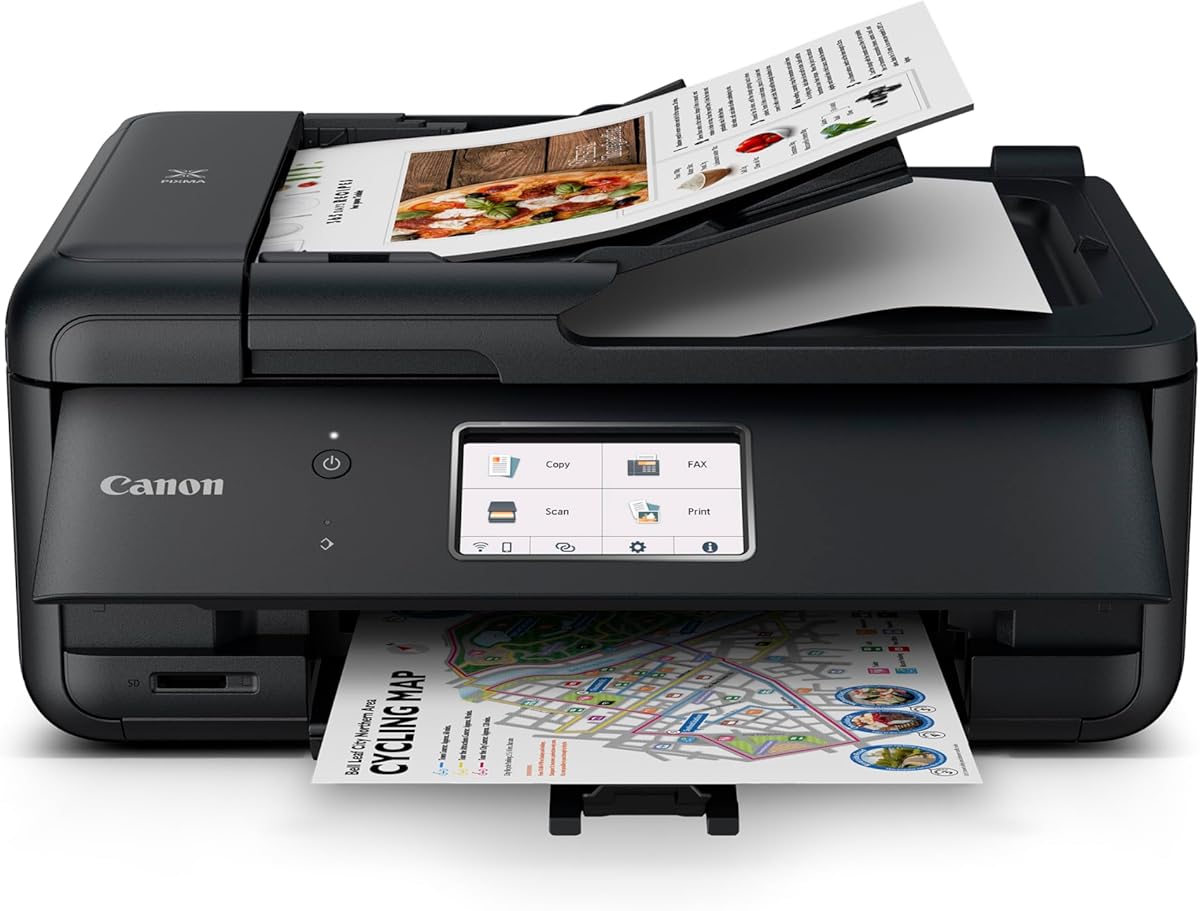
The Canon PIXMA TR7120 delivers impressive value for budget-conscious MacBook Air users needing full functionality. With a 4.3 rating it balances cost and performance effectively for everyday home and office tasks.
We may earn a commission when you buy through this link, at no additional cost to you.
Its compact footprint fits easily on small desks while the dual-band Wi-Fi ensures stable connections. The auto document feeder simplifies scanning multi-page documents directly from your Mac.
Trade-offs include a smaller OLED display and lack of auto duplex on scanning. These limitations are minor given the price point and overall capability of the device.
This printer is perfect for students or light users seeking reliability without breaking the bank. It integrates smoothly with macOS and offers versatile printing options for various media types.
Designed to fit seamlessly into any workspace without sacrificing essential functions.
Get started quickly with easy setup for your smartphone or computer without delay.
We may earn a commission when you buy through this link, at no additional cost to you.
The Canon PIXMA TS6520 is a solid option for MacBook Air users prioritizing design and ease of use. Rated 4.2 stars it offers crisp prints and straightforward connectivity for daily tasks.
We may earn a commission when you buy through this link, at no additional cost to you.
Key strengths include an intuitive OLED display and reliable dual-band Wi-Fi for stable connections. It supports various media types making it versatile for photos and documents alike.
Lacking an auto document feeder means manual scanning for multi-page items. Color speeds are also modest but sufficient for home users with moderate printing needs.
Ideal for those who want a sleek printer that fits a modern workspace. Its mobile printing capabilities ensure you can print from your Mac or iPhone effortlessly.
Monitor ink levels and adjust settings at a glance using the OLED screen.
Print directly from your smartphone or tablet with popular services like AirPrint.
We may earn a commission when you buy through this link, at no additional cost to you.
The Brother Work Smart 1360 provides efficient printing for MacBook Air users needing speed and connectivity. With a 3.8 rating it handles everyday home office tasks reliably without complex setup.
We may earn a commission when you buy through this link, at no additional cost to you.
Key strengths include fast black printing speeds and seamless cloud app connections for flexible printing. The compact design fits well in small spaces while maintaining full functionality.
Some users report occasional connectivity issues which may affect reliability during critical times. The display is also smaller than competitors but adequate for basic navigation tasks.
Choose this model for quick black and white printing with cloud convenience. It suits users who value speed and simplicity over advanced features or large screens.
Print and scan to popular apps like Google Drive and Dropbox directly from the display.
Use the Brother Mobile Connect app for easy menu navigation from your device.
We may earn a commission when you buy through this link, at no additional cost to you.
The HP Envy 6155 offers versatile features for MacBook Air users needing quality photos and documents. Rated 4.2 stars it combines ease of use with strong visual output for home environments.
We may earn a commission when you buy through this link, at no additional cost to you.
Key strengths include a smooth 2.4-inch touchscreen and True-to-Screen tech for vibrant prints. AI capabilities help optimize layouts reducing waste and improving overall print quality significantly.
Color speeds are slower compared to business models which may limit heavy use cases. The instant ink trial is beneficial but ongoing costs should be considered before purchasing.
This model is ideal for creative users wanting excellent photo quality. Its sustainable design and user-friendly interface make it a great fit for modern home offices.
Print documents and photos that look as vibrant as they do on your screen.
Made with at least 60% recycled plastic content reducing environmental impact.
We may earn a commission when you buy through this link, at no additional cost to you.
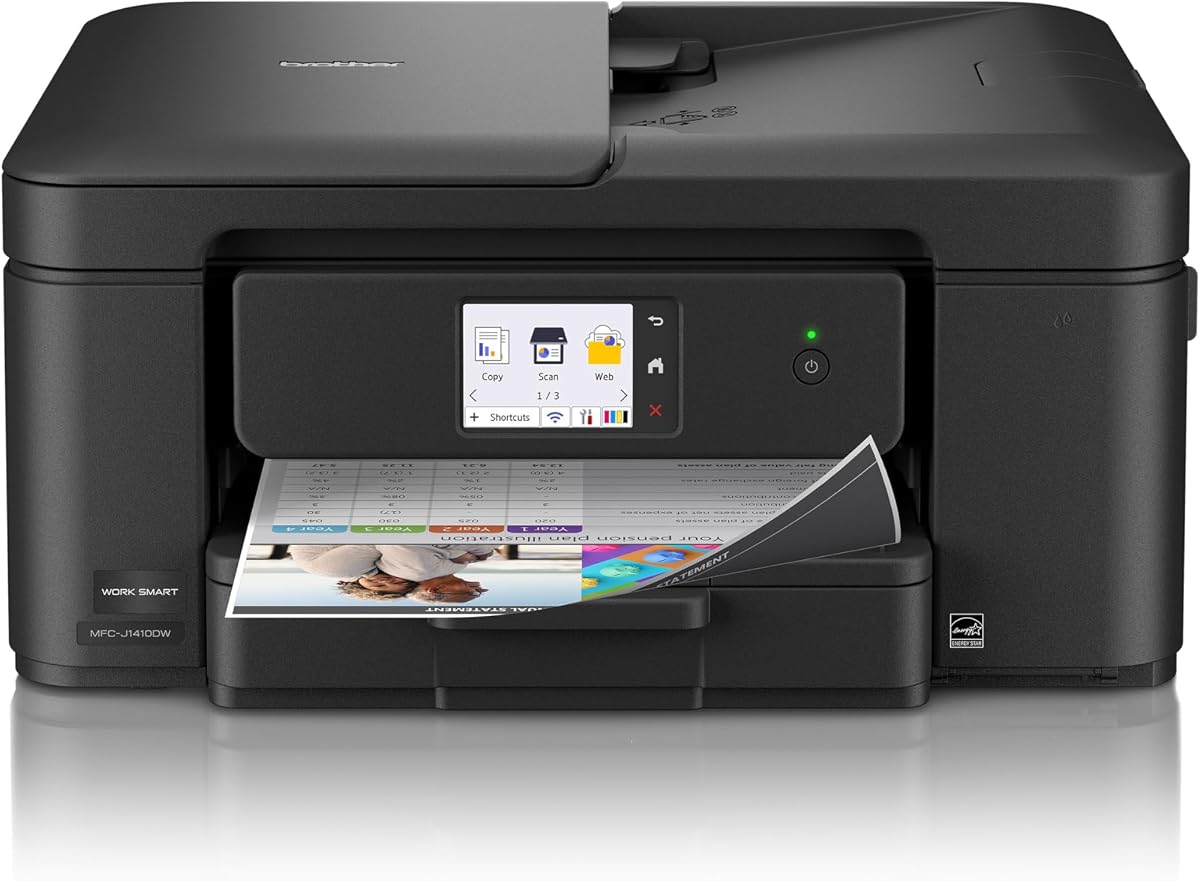
The Brother Work Smart 1410 is a productive choice for MacBook Air users needing a large display. Rated 4.0 stars it offers fast printing speeds and cloud features for modern workflows.
We may earn a commission when you buy through this link, at no additional cost to you.
Key strengths include a clear 2.7-inch touchscreen for easy navigation and rapid black printing. Cloud app support allows flexible access from Mac devices without physical connections.
Missing an auto document feeder limits scanning efficiency for multi-page jobs. Subscription trials may have limited duration so check terms before relying on specific ink delivery services.
Select this printer for its balance of speed and usability. It suits users needing reliable black and white output with convenient mobile management capabilities.
Automatic duplex printing and fast speeds optimize your workflow efficiently.
Go mobile with the app for easy onscreen menu navigation from any device.
We may earn a commission when you buy through this link, at no additional cost to you.
The HP OfficeJet 3830 brings smart home integration to MacBook Air users needing simple printing. With a 4.3 rating it supports voice commands and wireless tasks effortlessly for daily use.
We may earn a commission when you buy through this link, at no additional cost to you.
Key strengths include Alexa compatibility for voice-activated printing and reliable AirPrint support. Its compact design fits neatly into small spaces without sacrificing essential functions.
As an older model it lacks advanced features like duplex printing found in newer versions. However it remains a practical option for basic scanning and copying needs.
This printer works well for smart home enthusiasts wanting voice control. It suits light users seeking affordability and compatibility with modern voice assistants.
Print from anywhere using your smartphone or tablet with free HP apps.
Optional quiet mode helps keep noise to a minimum during home use.
We may earn a commission when you buy through this link, at no additional cost to you.
The Canon PIXMA TR8620a offers robust features for MacBook Air users needing fax and high capacity. Rated 4.0 stars it handles heavy tasks with reliable performance and smart reorder options.
We may earn a commission when you buy through this link, at no additional cost to you.
Key strengths include a 200 sheet capacity and automatic document feeder for efficient workflow. Alexa integration allows smart reordering when ink levels run low automatically.
The larger footprint may not suit compact desks and the price is higher than basic models. However the added functionality justifies the cost for demanding users.
Choose this model for business needs requiring fax and high volume. It suits users wanting smart features and reliable printing for professional documents.
Alexa can even place a smart reorder from Amazon on your behalf.
Just say Alexa discover my printer to connect and use your device.
We may earn a commission when you buy through this link, at no additional cost to you.
The Canon PIXMA TR4720 provides practical features for MacBook Air users on a budget. With a 3.9 rating it balances basic functionality with essential tools for home use.
We may earn a commission when you buy through this link, at no additional cost to you.
Key strengths include auto duplex printing and an auto document feeder for simple scanning tasks. Alexa support helps manage ink levels and reorder supplies without manual effort.
Slower print speeds and lower duty cycle limit heavy use scenarios. However for light printing needs it offers good value and necessary connectivity features.
This printer is suitable for light home users needing fax and scanning. It integrates well with smart assistants and offers essential functions at an affordable price.
Connect your printer to Alexa and receive notifications when you are running low.
Designed for easy ink cartridge installation and replacement without hassle.
We may earn a commission when you buy through this link, at no additional cost to you.
Selecting the right printer requires evaluating connectivity, size, and features to match your specific workflow needs.
MacBook Air users need reliable wireless printing capabilities to avoid cluttered workspaces. Look for models supporting AirPrint or manufacturer apps that integrate natively with macOS and iOS. Dual-band Wi-Fi ensures stable connections preventing dropped jobs during important tasks.
Prioritize printers offering seamless wireless setup to save time on configuration and reduce connectivity frustration.
MacBook users often work in compact home offices or coffee shops requiring a small printer footprint. Choose models designed to fit on desks without overwhelming your workspace. Consider dimensions carefully to ensure the device does not obstruct your view or keyboard.
Select a compact model that complements your setup while still providing essential scanning and copying features.
Printing speed significantly impacts workflow efficiency especially when handling large documents or reports. Check pages per minute ratings for black and color output to gauge performance. Faster speeds reduce wait times allowing you to maintain focus on your work.
Aim for models with at least 10 ppm black speed for smooth daily operations.
Long-term printing costs depend heavily on ink subscription plans or cartridge prices. Evaluate whether the printer uses standard cartridges or refillable tanks to reduce expenses. Consider subscription trials as savings but also budget for ongoing fees after they expire.
Calculate total cost of ownership based on your expected monthly page volume.
Scanning multi-page documents efficiently requires an auto document feeder or ADF. Without this you must manually place each page on the scanner bed increasing time and effort. For frequent document digitization prioritize models including this feature.
Ensure the scanner resolution meets your needs for text clarity and image quality.
Modern printing involves sending jobs from smartphones or tablets as often as laptops. Check if the manufacturer offers a dedicated app for mobile management and printing. Robust apps simplify setup monitoring and troubleshooting without needing a computer.
Choose a brand with a well-reviewed app for better user experience.
Automatic two-sided printing reduces paper usage and creates professional documents. Not all budget models include this feature so verify before purchasing. It saves time manually flipping pages and reduces overall operating costs.
Prioritize models with auto duplex if you print frequently.
A clear touchscreen or display simplifies navigation and settings adjustments. Larger screens show status and ink levels more clearly than small panels. User-friendly interfaces reduce setup time and make troubleshooting easier.
Look for intuitive interfaces that provide clear feedback during operation.
Connect your printer to the same Wi-Fi network as your MacBook Air to enable wireless printing. Install the manufacturer software or use AirPrint within system settings to recognize the device. Test a page to ensure the connection is stable and functional.
Keep ink levels monitored and refill cartridges early to avoid drying out the printheads. Use genuine or high-quality ink to maintain consistent print quality and prevent clogging. Clean the exterior regularly with a soft cloth to remove dust and debris.
Perform regular alignment tests to maintain sharp text and accurate colors. If unused for long periods run a cleaning cycle to prevent ink from hardening inside nozzles. Store the printer in a stable environment away from direct sunlight or moisture.
Most modern printers support AirPrint allowing you to print without installing additional drivers. Simply ensure both devices share the same network. Some manufacturers offer optional software for advanced features.
Yes most models include scanning software or apps to save scans directly to your computer. Connect via Wi-Fi or USB depending on the setup. Check system preferences to verify the scanner is recognized.
Ensure the printer and MacBook are on the same Wi-Fi network. Restart both devices to refresh the connection. If issues persist check the printer settings for AirPrint enablement.
No manufacturers make printers exclusively for MacBook Air but many optimize macOS compatibility. Look for models with AirPrint and Apple-certified apps. Compatibility is widely supported across most brands.
Many printers offer trial subscriptions for automatic ink delivery. You can cancel anytime before renewal to avoid charges. Check manufacturer accounts online to manage plan details easily.
No duplex printing is not standard on every model especially budget options. Check product specifications carefully before purchasing. Many mid-range models include this feature for convenience.
Some models support voice assistants like Alexa for basic commands. You can check ink levels or order supplies verbally. Ensure the printer is linked to your smart home account.
These ten models cover diverse needs from budget-friendly options to premium high-performance devices. The HP OfficeJet Pro 8125 leads overall while the Canon PIXMA TR7120 offers excellent value for price-conscious buyers.
Prioritize connectivity and ease of use to ensure smooth integration with your Apple ecosystem. Features like AirPrint and mobile apps make managing print jobs effortless for daily tasks.
Always verify current stock and availability before purchasing as details change frequently. Select the model that best matches your budget and workflow requirements for optimal satisfaction.