As an Amazon Associate we earn from qualifying purchases. We may earn a commission when you buy through links on this page, at no additional cost to you. Read our affiliate disclosure.As an Amazon Associate we earn from qualifying purchases.Purchases through our links may earn us a commission, at no extra cost to you. Read our affiliate disclosure.
Finding a reliable KVM switch for 2 computers and 2 monitors streamlines your workflow by reducing cable clutter. These devices let you control multiple systems with one keyboard and mouse, enhancing productivity for professionals and enthusiasts.
We evaluated ten top-rated models based on video resolution support, USB connectivity, switching ease, and build quality. Our analysis focuses on how well each unit handles extended displays and peripheral sharing across different operating systems.
Each pick highlights specific strengths like 8K support or DisplayPort compatibility to help you choose the right fit. Please note that product availability and pricing may change, so verify details before purchasing to ensure compatibility with your setup.
Top 3 Picks for Best KVM Switch for 2 Computers and 2 Monitors
Best Budget
KVM Switch Dual Monitor 2 Computers 2 Monitors, Ouluoa 4K@60Hz HDMI KVM Switch with 4 USB 3.0 Ports, Wired Controller, Extended Display, 2 Port KVM Switcher for Windows Mac Linux
Top 10 Best KVM Switch for 2 Computers and 2 Monitors in 2026 Compared
The following table provides a side-by-side comparison of all ten evaluated KVM switches. Review the video standards, USB port counts, and switching methods to identify the model that aligns best with your dual-monitor workstation requirements.
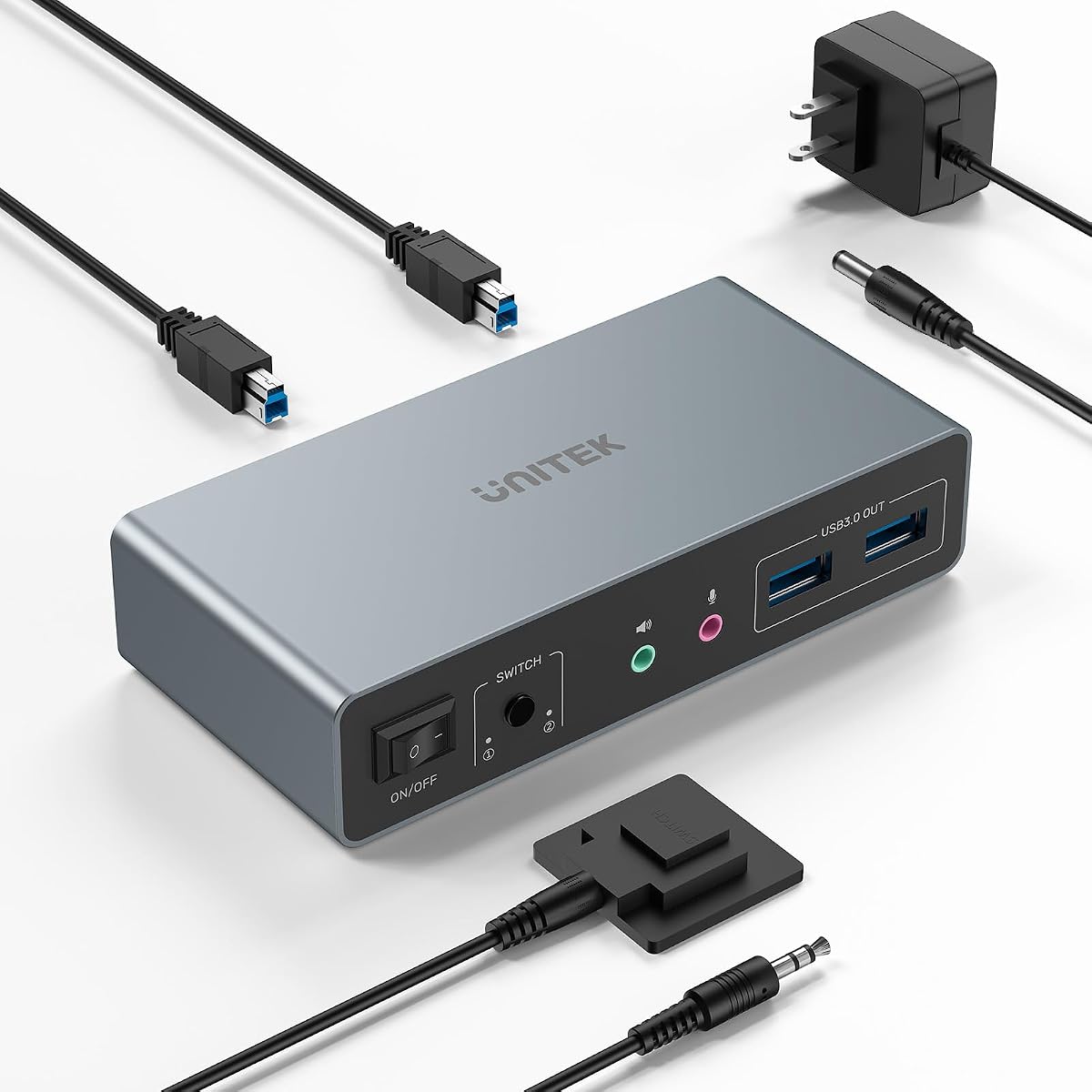
The Unitek KVM Switch supports both HDMI and DisplayPort inputs, making it versatile for mixed hardware setups. With a 4.5 rating, it offers reliable switching for two computers and two monitors.
Pros
Mixes HDMI and DisplayPort inputs
Includes external power adapter
Supports 4K resolution output
Cons
Laptop incompatible per instructions
Requires specific cable setup
We may earn a commission when you buy through this link, at no additional cost to you.
It features four USB 3.0 ports for peripheral sharing, including keyboards and hard drives. The included power adapter ensures stable performance even when using power-hungry USB devices.
However, it is strictly for desktops and not laptops. Users must ensure their hosts have all necessary video outputs connected simultaneously for proper operation.
This model is ideal for office workstations needing dual inputs. Its plug-and-play design simplifies installation without requiring extra software drivers.
Flexible Input Compatibility
The ability to mix HDMI and DisplayPort allows users to connect newer monitors alongside older systems easily.
Power Stability
The dedicated power adapter prevents brownouts when sharing multiple USB devices like hard drives or printers.
8K HDMI KVM Switch 2 Monitors 2 Computers Dual Monitor Extended Display 8K@60Hz 4K@120Hz, 2-Port KVM Switches with 4-Port USB 3.0 Hub, Desktop Controller and 2 USB Cables
8K at 60Hz
4K at 120Hz
4 USB 3.0 Ports
12V External Power
This premium 8K HDMI KVM switch offers top-tier visual performance for professional and gaming setups. It supports 8K@60Hz and 4K@120Hz refresh rates for sharp imagery.
Pros
Supports 8K@60Hz resolution
4K at 120Hz for gaming
Includes wired controller
Cons
Requires dual HDMI ports per PC
Higher price point
We may earn a commission when you buy through this link, at no additional cost to you.
The unit includes a 4-port USB 3.0 hub for fast data transfer and peripheral sharing. A dedicated 12V power supply maintains stability during extended use.
Users must have computers with dual HDMI outputs to enable extended display modes. The lack of hotkey support means switching relies on buttons or the controller.
It is best suited for users needing ultra-high-resolution displays. The external controller keeps the desk organized and makes switching effortless.
Ultra HD Visuals
The 8K support future-proofs your setup for next-generation monitors requiring high bandwidth and refresh rates.
Peripheral Hub
Four USB 3.0 ports allow sharing of drives and webcams without needing extra cables on each PC.
This model delivers exceptional visual quality with 8K and 4K@120Hz capabilities. It is well-rated for its smooth switching and broad device compatibility.
Pros
High refresh rate support
Backward compatible with 1080P
Includes power adapter
Cons
No keyboard hotkey switching
Requires dual HDMI outputs
We may earn a commission when you buy through this link, at no additional cost to you.
With four USB 3.0 ports, it allows efficient sharing of printers and scanners. The 12V adapter ensures reliable power for connected peripherals.
Like others in this category, it requires desktops with dual graphics cards for full functionality. Active adapters are recommended for signal stability.
Gamers and designers will appreciate the high refresh rates. The panel button simplifies switching without needing extra desk space.
High Refresh Rates
Supporting 120Hz at 4K ensures smooth motion for gaming and video editing workflows.
Device Sharing
The USB hub functionality reduces the need for multiple peripherals connected to each computer.
4K@144Hz KVM Switch 2 Monitors 2 Computers Display Port 8K@60Hz USB 3.0 KVM Switch Dual Monitor for 2 Computers Share 2 Monitors and 4 USB Devices Support Extended/Copy Mode with Desktop Controller
4K@144Hz Refresh
DisplayPort Cables
4 USB 3.0 Ports
External Power Supply
Designed for high-performance setups, this DisplayPort switch supports 4K@144Hz for fluid visuals. It is highly rated for its smooth operation and compatibility.
Pros
Supports 144Hz refresh rate
Plug-and-play setup
Remote switch included
Cons
DP cables not included
Requires specific DP ports
We may earn a commission when you buy through this link, at no additional cost to you.
The unit offers a 4-port USB 3.0 hub for sharing peripherals easily. A remote switch helps organize cables by hiding the main unit under desks.
Note that DP cables are not included and high-performance devices may need confirmation. The setup requires specific port configurations on computers.
This is a strong choice for PC gamers needing high refresh rates. The extended mode supports efficient multitasking across two screens.
Gaming Focus
The 144Hz support ensures low latency and smooth frame transitions during competitive gaming sessions.
Cable Management
The remote controller allows flexible placement to reduce clutter on your workspace.
8K HDMI KVM Switch 2 Monitors 2 Computers,8K@60HZ USB3.0 Dual Monitors KVM Switches for 2 PC/Laptops Share Mouse Keyboard and 2 Screens,with 2 USB Cables/Controller,EDID Adapative,Plug&Play
EDID Adaptive Feature
8K@60Hz Support
3 USB 3.0 Ports
Zero Installation
This switch features adaptive EDID to maintain stable image transmission across different systems. It is a reliable choice for users needing quick plug-and-play setup.
Pros
Automatically adjusts parameters
Stable transmission
Compatible with laptops
Cons
Fewer USB ports
Requires 2.1 cables for 8K
We may earn a commission when you buy through this link, at no additional cost to you.
The HDMI 2.1 support allows 8K@60Hz when paired with high-quality cables. Three USB 3.0 ports support basic peripheral sharing needs.
The device is designed to minimize connection issues during switching. It avoids software drivers for easy use across multiple operating systems.
It is best for general productivity tasks needing seamless switching. The lack of extra USB ports may limit heavy peripheral users.
Adaptive Technology
Smart EDID function prevents screen freezes and distortion when toggling between different computer systems.
Setup Ease
No software installation is required, making it easy to start using immediately after cable connections.
This compact DisplayPort KVM switch offers durable aluminum housing and modern connectivity options. It supports 4K resolution for sharp visuals on secondary screens.
Pros
Durable aluminum build
Compact size
USB-C support
Cons
Not compatible with laptops
No HDMI input
We may earn a commission when you buy through this link, at no additional cost to you.
The design includes a USB-C port alongside USB-A ports, catering to newer devices. Its small footprint helps save valuable desk space.
It is strictly for desktop systems and lacks HDMI inputs. Proper cable management is needed to maximize its space-saving benefits.
Modern workspaces will appreciate its sleek design. It is a solid choice for professional setups needing reliable DisplayPort connectivity.
Modern Connectivity
The inclusion of USB-C allows direct connection to newer peripherals without additional adapters.
Heat Dissipation
Aluminum housing helps dissipate heat effectively, ensuring stable operation during long hours of use.
KVM Switch Dual Monitor 2 Computers 2 Monitors, Ouluoa 4K@60Hz HDMI KVM Switch with 4 USB 3.0 Ports, Wired Controller, Extended Display, 2 Port KVM Switcher for Windows Mac Linux
High Rating
4 USB 3.0 Ports
EDID Copy
12V Power Supply
Ouluoa KVM switch earns a high rating for its reliability and comprehensive accessory kit. It supports 4K@60Hz and includes all necessary power components.
Pros
Highest rating in category
Affordable price
Full accessory kit
Cons
HDMI only
Basic features
We may earn a commission when you buy through this link, at no additional cost to you.
The EDID copy feature ensures stable window management across switches. Four USB ports allow easy sharing of peripherals and storage.
It is a straightforward device for basic dual-monitor setups. The package includes a wired controller for flexible switching options.
This is the best value for general users. It balances performance with cost, making it a top pick for home offices.
Accessory Kit
The package includes all cables and power supplies, ensuring you can use it right out of the box.
User Satisfaction
High user ratings indicate consistent performance and reliability for daily workstation usage.
HDMI KVM Switch 2 Monitors 2 Computers – 8K@60Hz, 4K@120Hz, 4 Port USB 3.0 Hub (5Gbps), Wired Remote, Plug & Play for Windows/Mac/Linux with an additionl Braided 8K HDMI Cable
Includes Braided Cable
8K at 60Hz
Metal Housing
4 USB 3.0 Ports
This HDMI KVM switch includes a braided 8K cable for immediate high-resolution use. It supports 8K@60Hz and 4K@120Hz for demanding tasks.
Pros
Includes HDMI 2.1 cable
Supports 8K resolution
Durable metal build
Cons
Slightly lower rating
Power adapter needed
We may earn a commission when you buy through this link, at no additional cost to you.
Four USB 3.0 ports facilitate fast data transfer and peripheral sharing. The metal housing adds durability for long-term use.
Users must ensure their graphics cards support the high refresh rates. The package does not include a power adapter for the unit.
It is a strong option for users needing high-speed connections. The included cable saves the hassle of sourcing a compatible HDMI 2.1.
Included Cable
The extra HDMI 2.1 cable ensures high bandwidth capability without needing extra purchases.
Build Quality
Metal construction provides better durability and heat management compared to plastic alternatives.
We may earn a commission when you buy through this link, at no additional cost to you.
Buying Guide – How to Choose the Best KVM Switch for 2 Computers and 2 Monitors
Choosing the right KVM switch requires checking video input compatibility and resolution support.
Video Input Compatibility
Check if your computers have HDMI, DisplayPort, or both outputs. Some switches require dual video ports per machine for extended displays.
Ensure the switch matches your existing monitor ports to avoid buying extra adapters.
Resolution and Refresh Rate
Higher refresh rates like 144Hz or 4K@60Hz are vital for gaming and design work. Standard office use may only need 1080p support.
Match the switch capabilities to your monitor specs for the best visual experience.
USB Port Count
Count your peripherals like printers and webcams. Models with four ports allow more sharing than those with three.
Ensure USB 3.0 support for fast data transfer when sharing storage devices.
Switching Methods
Look for wired remote controllers to save desk space. Hotkey switching is rare in dual-monitor models.
Choose button switching if you prefer direct access on the unit.
Power Supply
High-power USB devices often need an external adapter. Check if a power brick is included in the box.
Avoid relying solely on computer ports for stability with external hard drives.
EDID Support
EDID emulation maintains window positions when switching between computers. This reduces setup time during daily use.
Prioritize models with smart EDID features to avoid re-arranging windows constantly.
Operating System
Ensure the switch supports your OS like Windows or Linux. Most units are cross-platform but verify compatibility before buying.
Plug-and-play options avoid driver installation issues for smoother setup.
Cable Inclusions
Some packages include essential HDMI or USB cables while others do not. Check the box contents list to avoid unexpected costs.
Always verify if specific cable lengths suit your desk layout.
How to Use and Care for Your KVM Switch for 2 Computers and 2 Monitors
Connect each computer's video ports to the KVM switch inputs using matching HDMI or DisplayPort cables. Link the keyboard and mouse to the USB ports on the switch.
Ensure external power adapters are connected properly. Many switches need this to prevent flickering when USB devices are active.
Use the wired remote or panel buttons to toggle between systems. Check if your PC supports dual outputs before assuming extended display modes work.
Frequently Asked Questions
Do I need dual video ports per computer?
Yes, dual-monitor KVM switches typically require two video outputs per machine for extended displays. A single port usually only supports mirroring on one screen.
Why do my USB devices disconnect when switching?
Disconnects often occur due to power shortages. Connect the 12V adapter to ensure stable power for hard drives and webcams.
Can I use this with a laptop?
Most dual-monitor models are for desktops with dual graphics outputs. Laptops often lack the second video port needed for full functionality.
What is EDID emulation?
It allows your system to keep display settings when switching. This prevents your windows from rearranging each time you toggle computers.
Can I share a printer?
Yes, USB printers work well with KVM switches. Ensure the printer connects to a USB port shared across both computers.
Is hotkey switching available?
Most dual-monitor switches lack hotkey support. You will need to use physical buttons or a wired remote to toggle.
Do I need 8K cables?
Yes, for 8K@60Hz performance you need high-quality HDMI 2.1 cables. Standard cables may drop the resolution or cause flickering.
Are drivers required?
No, plug-and-play models are designed to work without software. Simply connect cables and your OS will recognize the devices.
Final Thoughts on Choosing the Best KVM Switch for 2 Computers and 2 Monitors
The top picks balance visual quality and peripheral sharing. Our Editor's Choice offers hybrid inputs while the Best Budget option provides high ratings.
Prioritize video resolution and power needs when selecting a model. Ensure your computers have dual video ports to support extended displays fully.
Always check current availability and compatibility details before purchasing. Verify cable inclusions to avoid unexpected extra costs during setup.
Find the best Beats Headphones Charging Cable Replacement for your devices. This guide compares top cables for durability, speed, and compatibility with